Tips for Working More Smoothly with Clients and Team Members

Share the article
ShareFile for Your Firm
Secure document workflows your team and clients will actually use
Get StartedKey Takeaways
Ever feel like only a fraction of your day goes toward actual creative work? See how a centralized system like ShareFile could greatly improve productivity with managing clients and tasks.At one point in my career as a writer and designer, I had three email inboxes I had to monitor and write from, four task management tools to manage, and a mix of content management systems to work with. Not to mention all the other software I worked with on a daily basis.
Not only was it a highly inefficient way to operate, it also led to errors. Like client meetings getting scheduled for the same time because I didn’t check all my calendars. Or losing track of a client who hadn’t fully onboarded, leaving the developer stuck waiting around for content way past the task deadline.
One of the best ways to avoid these types of issues and to work more smoothly with clients and team members is by centralizing your project management. To demonstrate this point, we’re going to look at different Progress ShareFile features and how to use them to simplify and expedite your workflows.
Centralize Client Records
I think a CRM can be a great tool if your agency works with more than a dozen clients a year and you want to keep track of important details about them. It’s also useful if your business receives tons of leads and you need a system for tracking, vetting and converting them over time.
That said, I don’t think your client records should exist solely in a CRM.
One of the problems I see in project management is that there’s a heavy emphasis put on the project and then the client falls by the wayside. But if you want your jobs to go more smoothly, then you’re going to need your clients to be involved along the way.
That’s why I look for systems where I can store important client information alongside what I’m working on. For example, ShareFile has a Client hub feature:
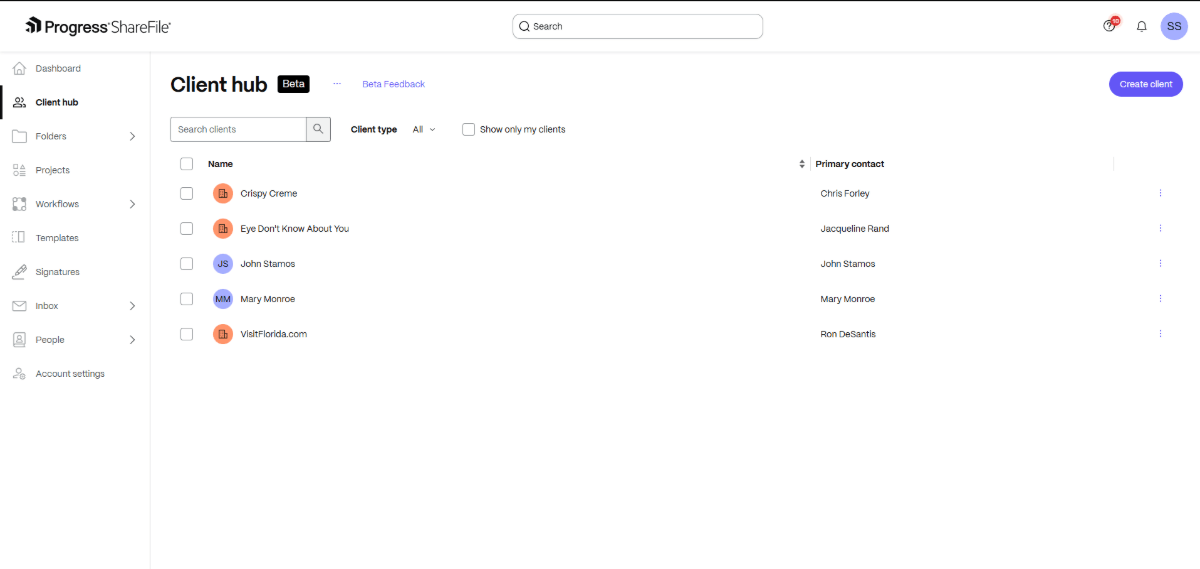
From here, you can add new clients and their primary contact person. This alone is a handy tool for keeping tabs on who you’re working with. But you can go deeper if you’d like, too.
Not only can you add multiple contacts on the client side, you can assign the client to specific team members from your end.
Also, when you connect a client record to a project, all kinds of details appear in their record. For example:
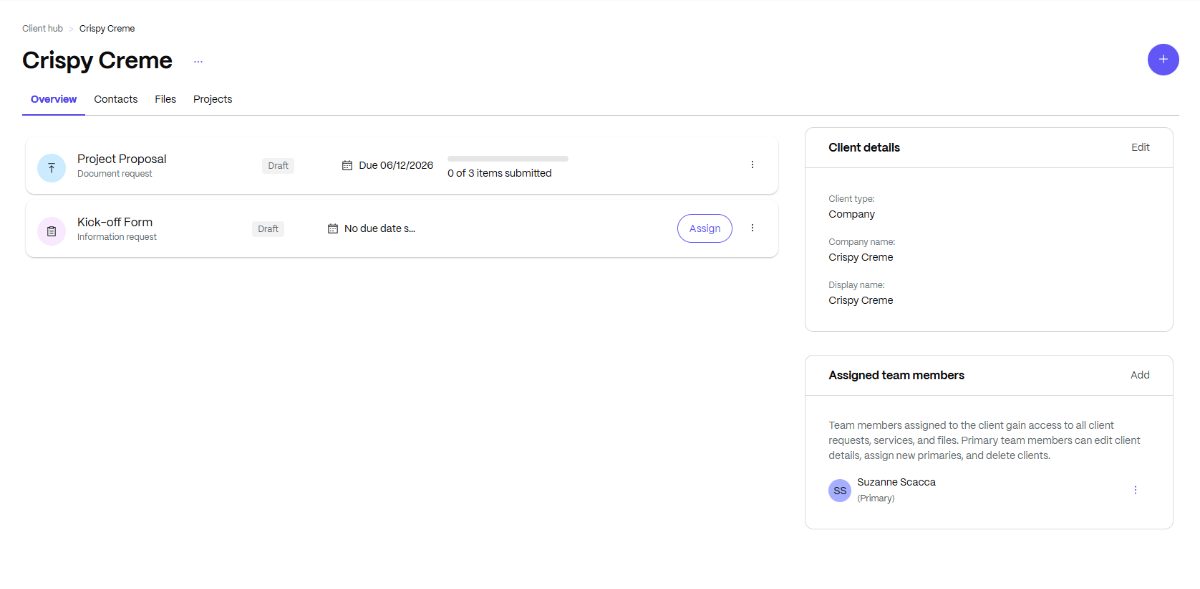
Along the right side of the screen, you can see the client’s details and who owns the project internally. On the left, you’ll find:
- Open tasks and to-dos
- Contact info for the client
- Files they’ve uploaded
- Connected projects
It keeps everything related to this one client and all their projects neatly in one place. If your team struggles to consolidate and organize clients and related projects, this is a handy tool.
What’s also nice about this platform is your ability to add prospective clients:
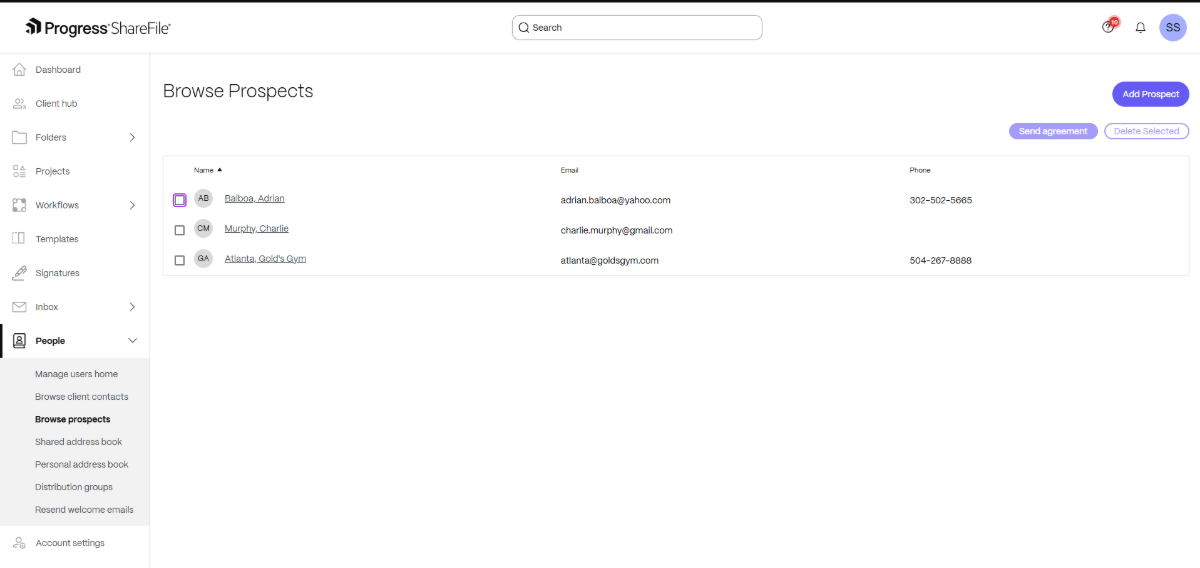
In the Browse Prospects screen, you can add basic details about leads. Once they’re ready to get started, select their name from this list, click “Send agreement,” and then attach the proposal document you created. When it gets approved, move the prospect over to your client hub.
Or you can set up an automated workflow to do this all for you. I’ll talk about that a bit more towards the bottom of this post.
Streamline Project Setup
The scope of work might differ from project to project, but how you get started likely won’t differ too much. For example, my web design projects almost always begin like this:
- Send proposal and scope of work documents to client.
- Collect all necessary client signatures and send a copy to them with my own on there.
- Schedule 30-minute kickoff call with client’s primary point of contact.
- Discuss scope of work, timeline and expectations.
- Send a list of what I need from the client, including source logo files, copy, CMS access, etc.
If most of your jobs follow similar trajectories (in the beginning or all the way through), there’s no reason to build out the steps and details from scratch each time.
Instead, templatize your process and setup. This will enable you to get projects started much more quickly. It will also help to prevent incomplete tasks or missed steps.
When setting up new projects in the ShareFile platform, for instance, you can start with a blank folder or use a prebuilt template.
If we look at the currently available Solution templates, you’ll probably find the Client Onboarding and Project Kick-Off the most helpful when building digital products.
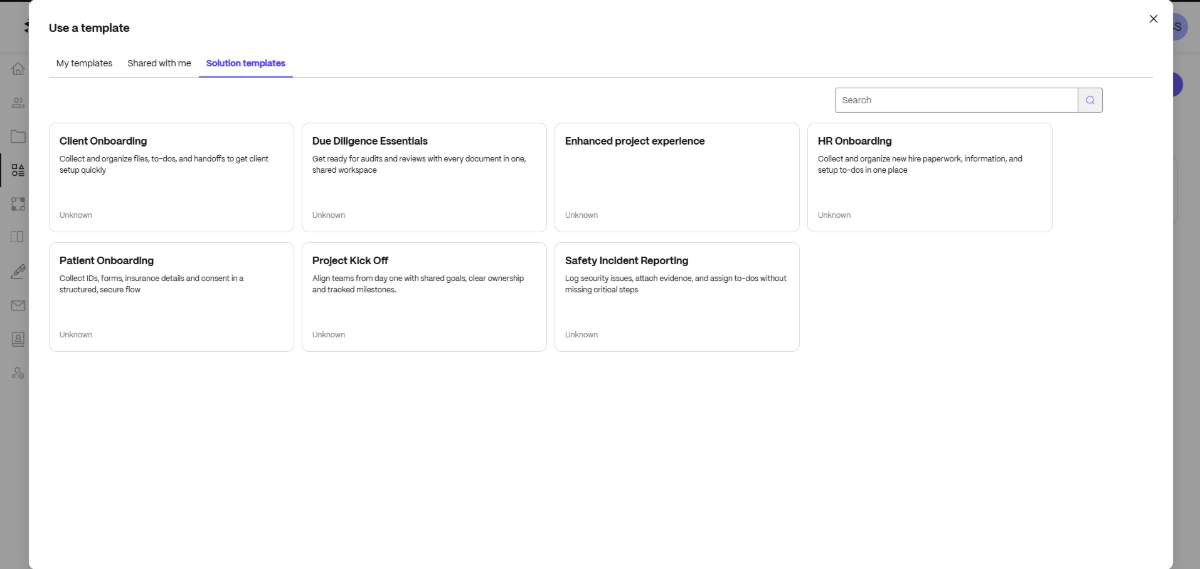
Not only do these templates come with premade task lists, they also include document requests. So if you’re using external tools like PandaDoc or HoneyBook to generate SOWs, contracts, change requests and other critical documentation, you can now handle them internally.
By the way, if you don’t see a template that works for your typical process, you can make your own. You can also customize one of these premade templates and save different versions of it for various client segments.
However you go setting up your project folders, once you’re inside, you’ll have a consistent storage and management space to work from.
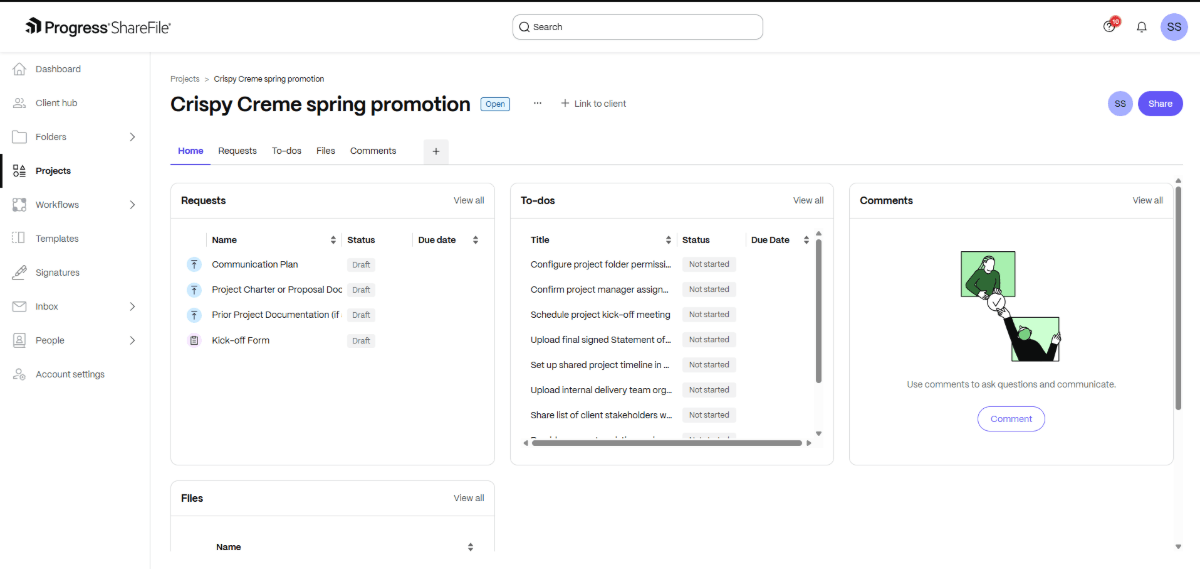
This is a sample project folder I set up for Crispy Creme’s spring promotion. You can see how Requests and To-dos were pre-loaded for me from the template I used. I can also use the Files space to store relevant project documents—from the client as well as from our team. And I can use the Comments area to store notes about the project or to get questions answered by the team.
What’s nice about managing project folders this way is that you have a consistent structure to work from. This will help speed up your process as team members get used to the flow. There won’t be any surprises or confusion about where information lives or how to find out where a project stands.
Say a client sends an email asking about project status, and a new employee gets the message. They can see from the timeline of To-dos where the project stands:
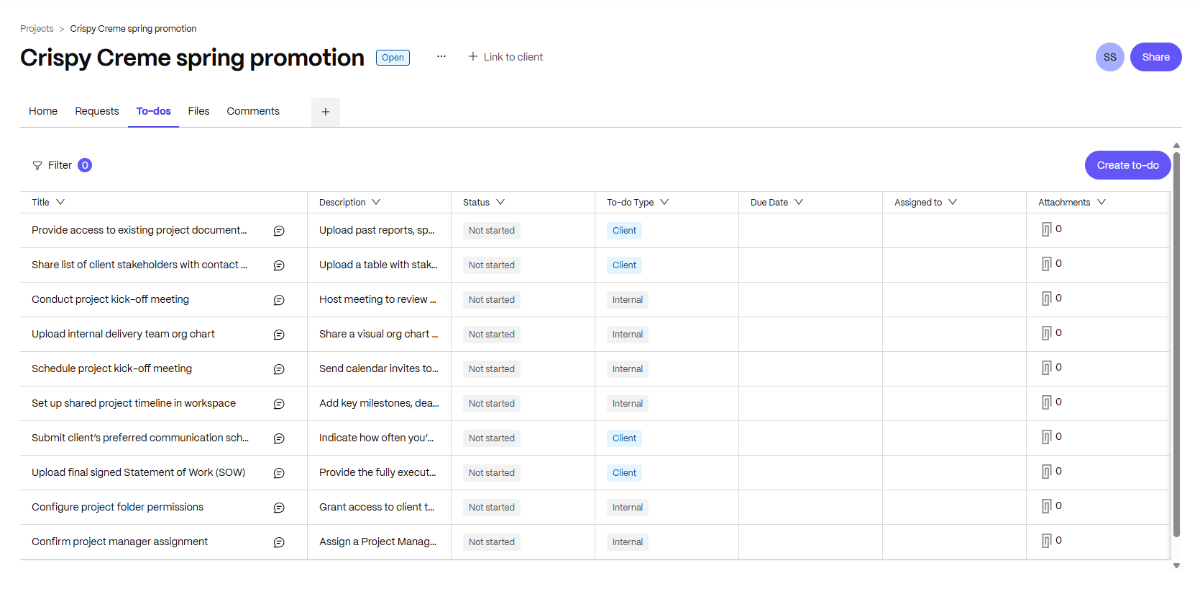
In the To-dos tab, you can update task status, to-do type (Client or Internal), the due date and who it’s assigned to.
Collaborate with Your Clients
I think it’s really beneficial to bring your clients directly into your system as well. As you can see in the screenshot above, ShareFile software gives you the ability to assign to-dos to clients. If you can get them onboarded into the ShareFile platform from the very start of the project, it’ll be easier to get them to pay attention to these tasks, respond to your requests, etc.
Start by setting them up as a Client. Once the Project has been created, click to share the project. Find the client in the list, assign them full or limited access and email them an invitation.
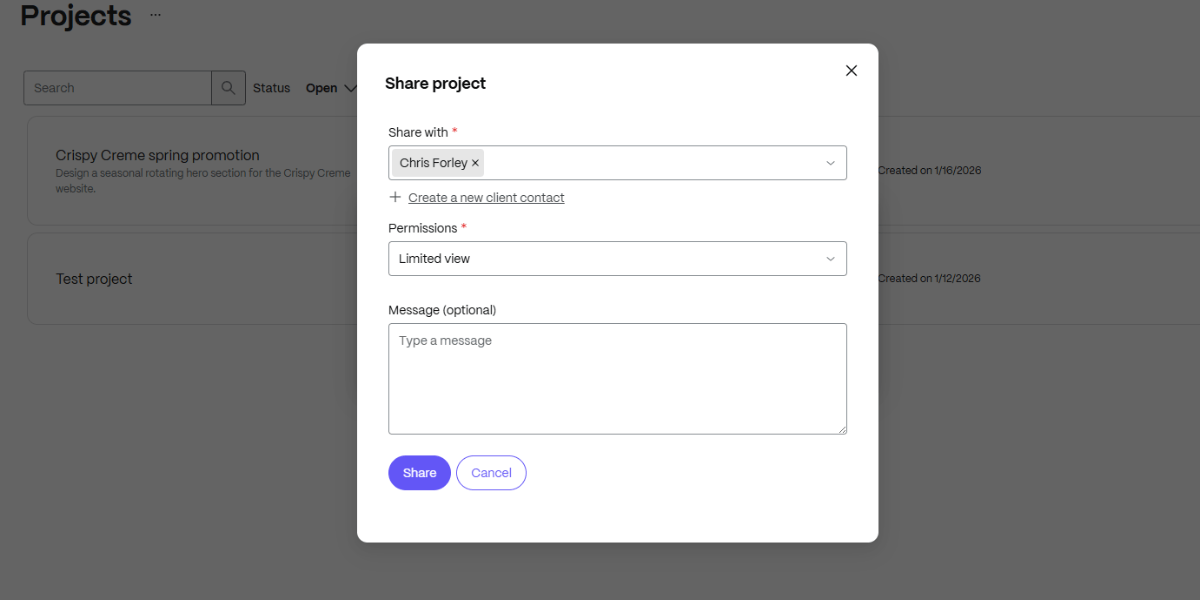
Permission levels allow you to gate off some of the areas of the project folder and system. That way, you can keep internal conversations private and let the client see only the bits that they need to.
What’s great about this is you’ll make clients feel like this is a truly collaborative process and that you’re their partner in this, not just some company or person they hired. It also makes things much easier on them.
For instance, they’ll get notifications when there are files ready to review or approve. There won’t be any documents to download on their computer or software to download (like Adobe Reader). They can just do it all from the ShareFile platform.
They’ll also have a dedicated space to upload files to:
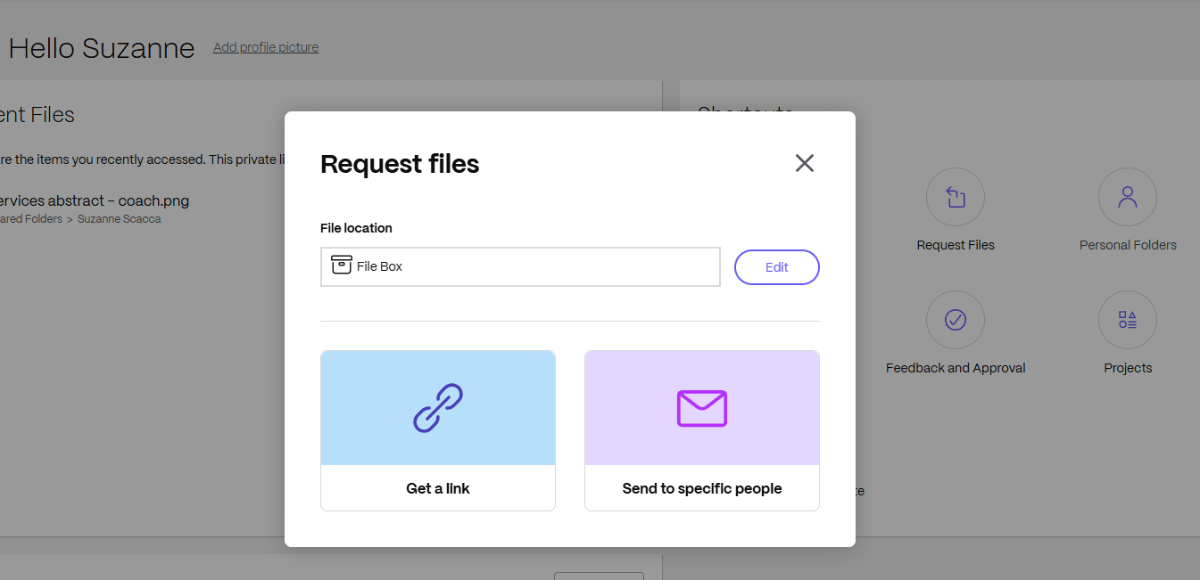
Some clients may struggle with this if they don’t have a third-party storage site of their own, like Box, DropBox or Google Drive. They may also run into problems when emailing them, only to find they’ve exceeded file size limits.
So, giving them a secure cloud-based area where they can upload their files is going to help get those files in your hands more quickly.
Get Approvals
When you’re working on websites and apps, it’s part of your job to get client approvals and signatures. By collecting them along the way, you verify that your client is satisfied with your progress. What’s more, by documenting their approval with digital communication and a signature, you can prevent problems like excessive change requests and scope creep down the line.
The only problem is that you usually have to use external tools like Bonsai, Docusign, etc. to get these signatures. If you can collect them from the system your client is already familiar with, it’ll go much more smoothly.
In addition to requesting files like logos, photography and content, you can also use ShareFile software to request signatures:
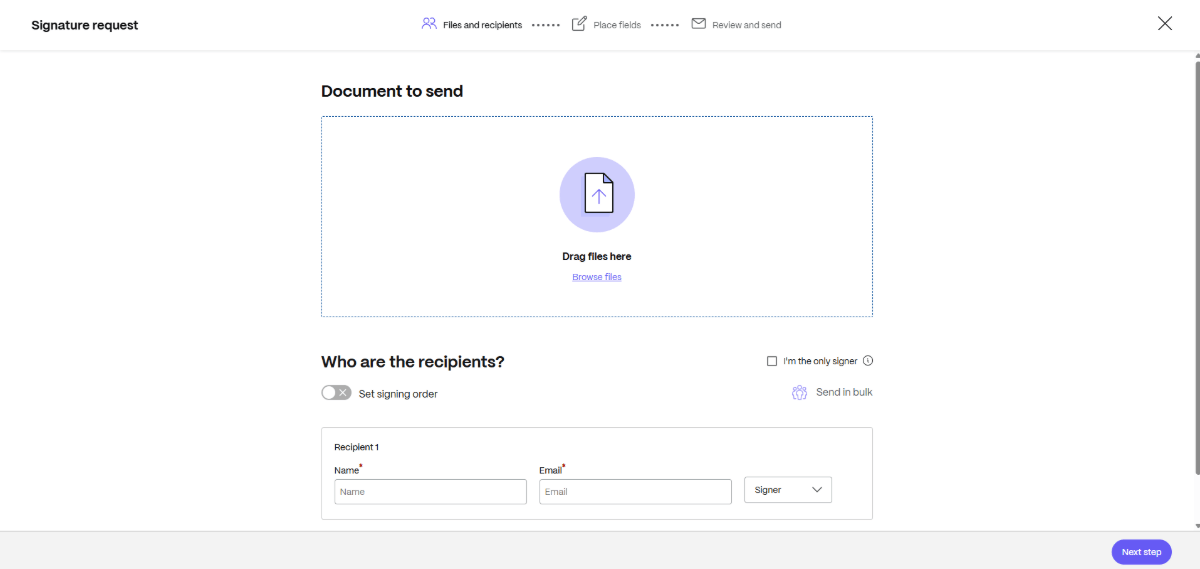
This particular tool is useful for the signing of contracts and change orders. You can also get the client’s signature at the end of the job to verify they’re 100% satisfied with your work before the website or app is turned over to them.
There are other tools inside of ShareFile software you can use to get your client’s sign-off. For example, when you go to “Feedback and Approval” from the dashboard, you’ll be taken to this Workflows screen:
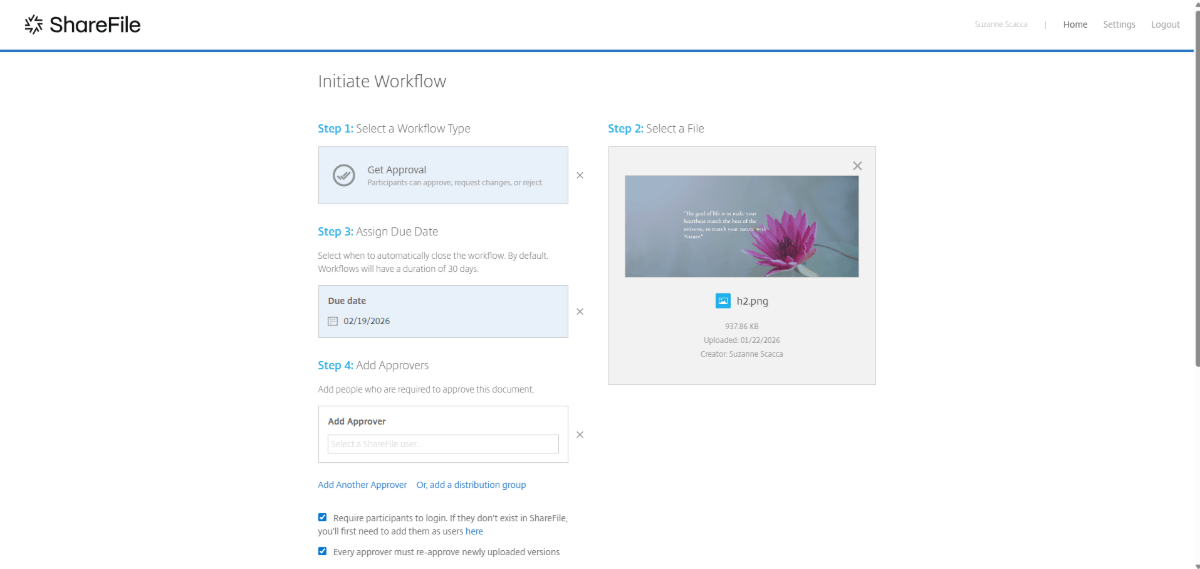
Here you’re able to build two different workflows.
When set to Collect Feedback, you’ll be able to send mockups to your clients for review. Here’s what they’ll see on their end:
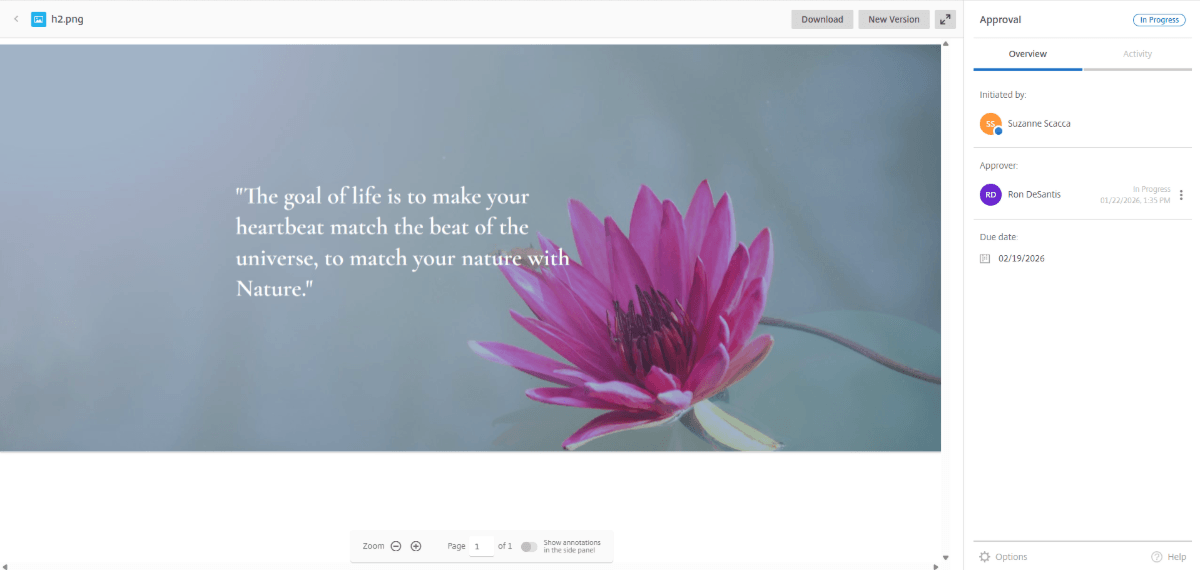
From this screen, they can leave comments over the document you’ve sent to them. By providing feedback on the visuals, your clients can more effectively share their feedback with you and your team.
Now, when the workflow is set to Get Approval, clients need to approve the design. The screen above will be similar. However, the point isn’t to leave comments. It’s to get their approval. If they’re not ready for that just yet, the file will get reworked and the workflow will start all over again.
Whichever workflow you use, this is a good way to get documented approval so you can confidently move onto the next phase. And if the client forgets to leave their feedback or approval, you can send them a reminder directly from this page.
Automate Common Tasks
If you or your team members follow certain workflows repeatedly from job to job, it would be beneficial to automate them. You can do this with certain types of flows in the ShareFile platform.
For example, here is a premade automated workflow called Accelerated Agreements for Prospects:
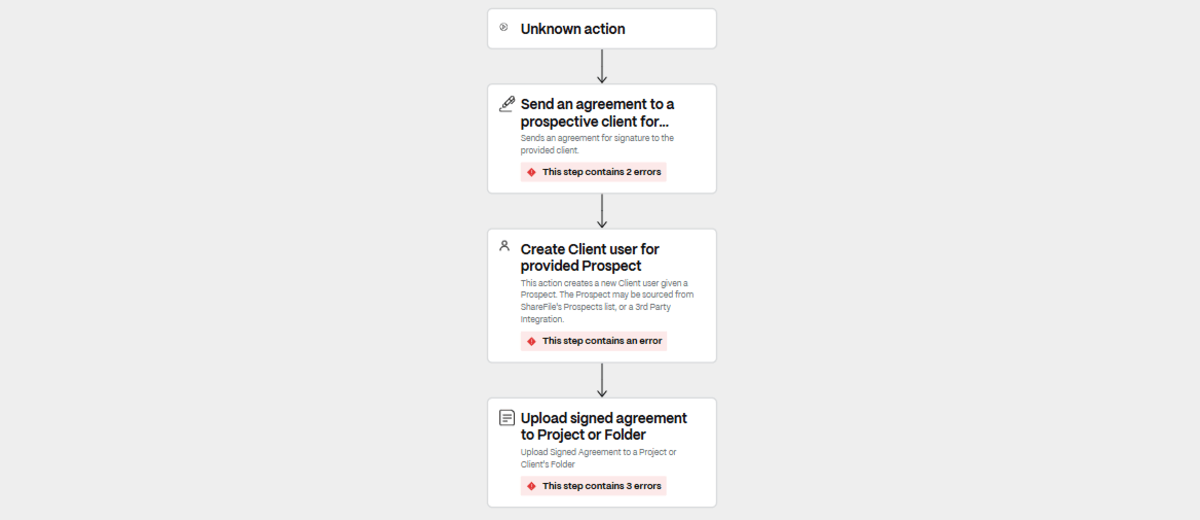
What this flow essentially does is send a proposal to a prospect, collect their signature, and convert their Prospect listing in ShareFile to a Client. The signed document then gets stored in their project folder.
All in all, this process might not take you more than 10 minutes to execute, but that’s 10 minutes you can devote to a more critical task.
You can use this tool to set up various triggers to streamline your workflow. Think of this feature like an internal IFTTT. In other words, if this trigger happens, then these next steps will follow.
This is great because it takes the more mundane (yet critical) tasks off of your plate. At the same time, it helps keep things moving and following your set process. While to-dos can help remind people to do certain things, automated workflows can help simple tasks like sending emails, uploading documents and converting prospects into clients get done.
The Connectors tool is also useful in this regard.
From the Account settings panel, you can add Connectors like Dropbox and Google Drive.
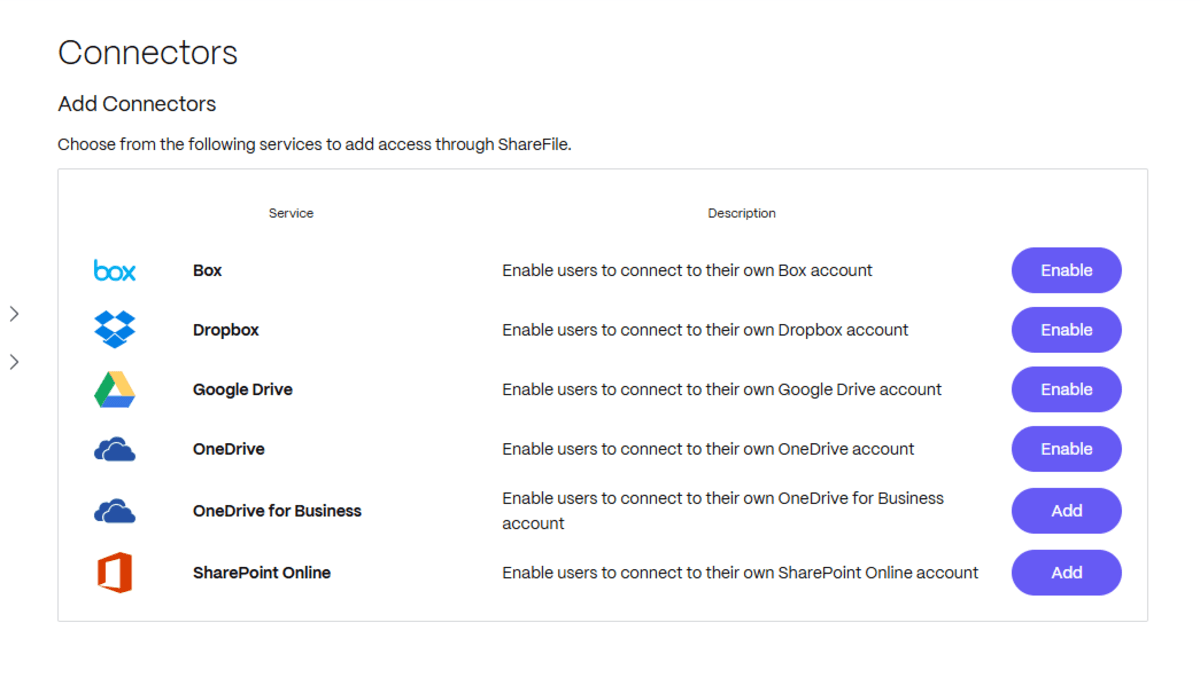
You can also set up connections to critical business software like:
- Freshbooks
- Pipedrive
- QuickBooks
- Salesforce
- Stripe
- Xero
If you want to effortlessly move info in between these platforms, automated connections will make this much easier.
Work More Smoothly with Clients Using ShareFile Software
If you find yourself or your team members complaining about delayed files from clients, vague approvals on designs or missing information about a job, your system might need an upgrade.
Having a documented and repeatable process is great, but it’s not going to be helpful if visibility, control and organization are lacking. If you want to get your product development jobs in order and to work more smoothly with clients, ShareFile software may be what you need. Check it out and even try it for free:
Topics
-
Client Engagement
-
VDR
-
File Management
-
File Sharing
-
Integrated E-signature
-
Apps and Integrations
-
Workflow Automation
-
Security and Compliance
Subscribe to ShareFeed Today
Stay ahead with the latest ShareFile releases, feature enhancements, and product updates delivered monthly straight to your inbox.

A former project manager and web design agency manager, Suzanne Scacca now writes about the changing landscape of design, development and software.