Streamlining Healthcare Onboarding with Patient Paperwork
As healthcare administrators, you already have a lot on your plate. Imagine if you could take something like patient onboarding off of it. In this post, we’ll look at how Progress ShareFile can help you do just that.

In healthcare, it’s not as simple as scheduling a new patient and then ushering them right in to see the provider. There’s information to collect first.
For starters, you need to get a copy of their ID along with proof of health insurance. Then there’s all the information related to their personal and medical history. You also need their consent to care for them, to share their medical info with their partners or referring providers, and more.
This process takes time for the patient to complete. It also takes time for practice administrators to coordinate and handle all the files and data.
What healthcare facilities need now more than ever is a system that streamlines patient onboarding. To reap all the benefits, this system should be digitized and automated.
The Benefits of Digitizing and Automating Patient Paperwork
Patient onboarding used to work like this:
- A new patient requests an appointment (or their referring provider does).
- The practice administrator asks for proof of ID and insurance.
- The patient receives paperwork to fill out.
- They rush to fill out all the documents before their name is called.
- The administrator reviews the forms, checking if anything is missed and then inputs the information into the system.
Paperless healthcare onboarding simplifies this process for all involved.
While the patient still has to complete the paperwork, the work isn’t done by hand anymore. Instead, they upload files online, and click and type their responses into fillable forms. All this can be done from the comfort of their home and on their own schedule.
Administrators benefit from a digitized and automated process, too. Rather than spend so much time doing data entry and file scanning, administrators can focus on being attentive to patients while helping healthcare providers to run a smooth operation.
Streamlining Healthcare Onboarding with ShareFile
Modern document workflows are all about speed and convenience. But any old enterprise file synchronization and share (EFSS) system won’t do.
When modernizing the document workflow for healthcare, transparency, attention to detail and data privacy all still matter. Because of this, patient experience managers and administrators have to be careful when choosing an EFSS.
If you haven’t considered the Progress ShareFile platform before, we’re going to take a look at how this EFSS is built for a niche like healthcare:
1. A Digital Space That Builds Trust
It’s absolutely crucial that healthcare providers make patients feel safe and comfortable. And while trust can take time to build, a poor first impression can sully that trust before it’s had a chance to grow.
Your office and waiting area isn’t the only space that sets the tone for what’s to come. The digital space your new patients use to fill out paperwork does as well.
So, you need an EFSS that enables you to create a space that fosters trust.
For starters, ShareFile software is designed with security controls to help protect sensitive information. The user portal is password-protected and supports organizations in meeting HIPAA requirements. This helps patients share private information more easily through the portal.
An extra layer of trust-building is available with white labeling. Instead of leaving the Progress ShareFile branding in the application, you’re able to swap it out so that it matches your brand with your own logo and colors.
2. Purpose-built Templates
One of the advantages of sticking with old-school paperwork is that all you have to do is print it, attach it to a clipboard and hand it to the patients. When migrating to a digital platform, you have to recreate and adapt your process.
ShareFile software helps to streamline this process with premade templates. For example, this is what the Patient Onboarding template looks like:
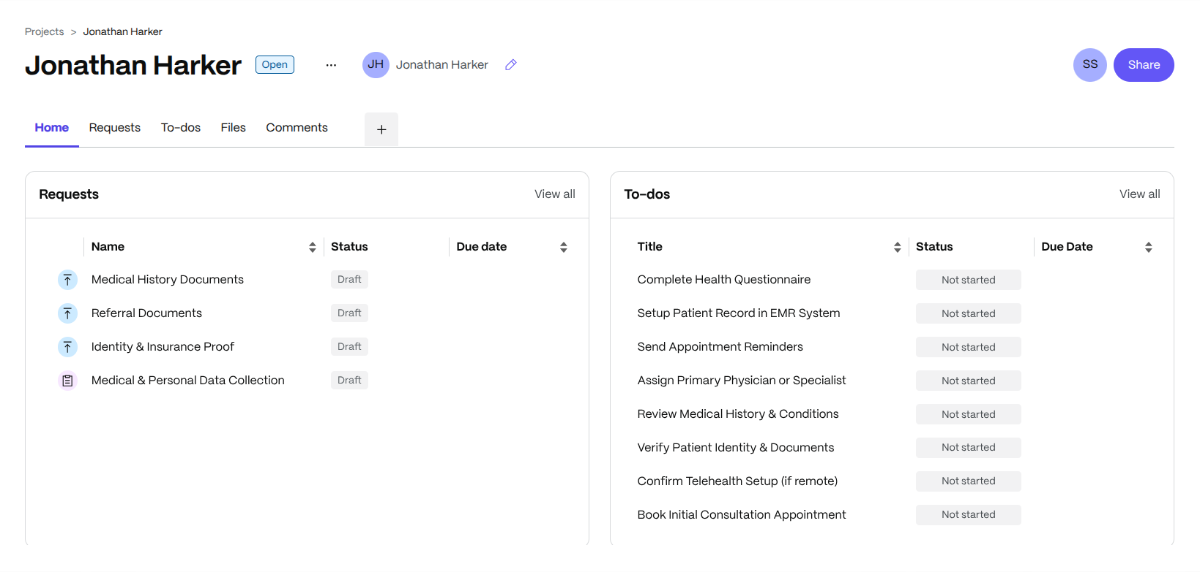
Our patient’s name is Jonathan Harker. Inside his patient folder, we’ve loaded the Patient Onboarding template.
This helps verify that our administrative team and the patient complete all the onboarding steps prior to his appointment. It also keeps everything organized within our digital paperwork system. There’s a space for each patient’s information requests, related to-dos, files and comments.
You can also modify ShareFile’s premade templates to better suit your workflow. Then save them to the Templates folder for easy reuse.
3. Onboarding Management Tools
Unlike general-purpose EFSS where you would give someone a link to a folder and leave them to upload all necessary paperwork, ShareFile software provides guidance and control over the process.
Whether you start with a project template or use your own, the new patient folder will always have a space for To-dos.
This task list helps patients know what exactly they owe you. It also gives your administrators a bird’s-eye view of what more needs to be done leading up to their first appointment.
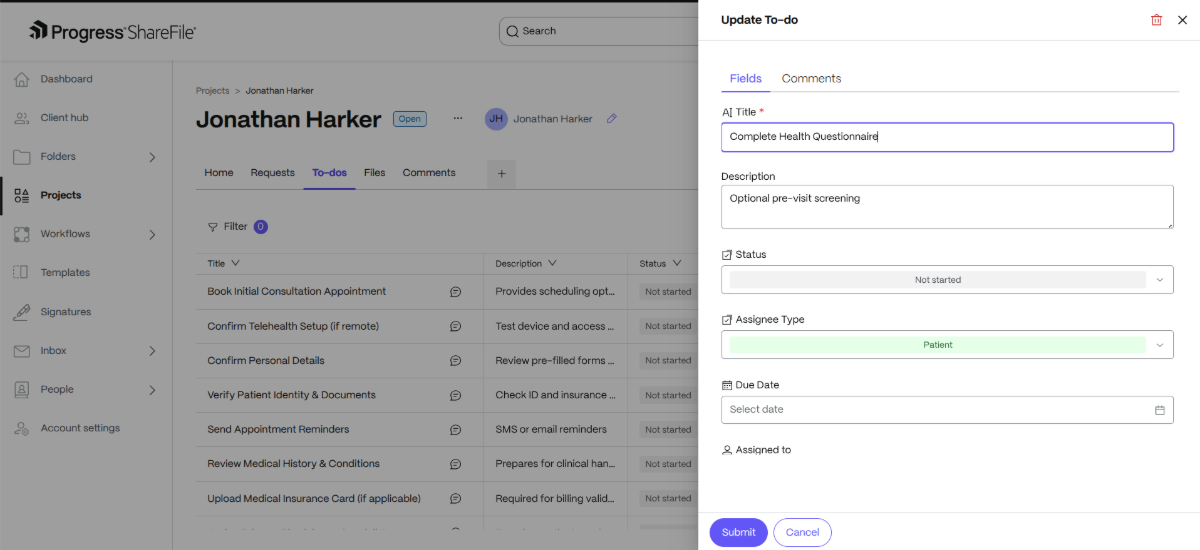
Each to-do comes with a number of fields to fill out and manage, like:
- Task name/title
- Description
- Status (Not Started, In progress, In review, Completed)
- Assignee Type (Patient, Medical Staff)
- Due Date
- Attachments
With the to-dos generated, you can create companion requests as needed. For example, if assigning your patients the “Complete Health Questionnaire” to-do, you’d want to have relevant paperwork shared with them as well.
Here’s a closer look at the Requests folder:
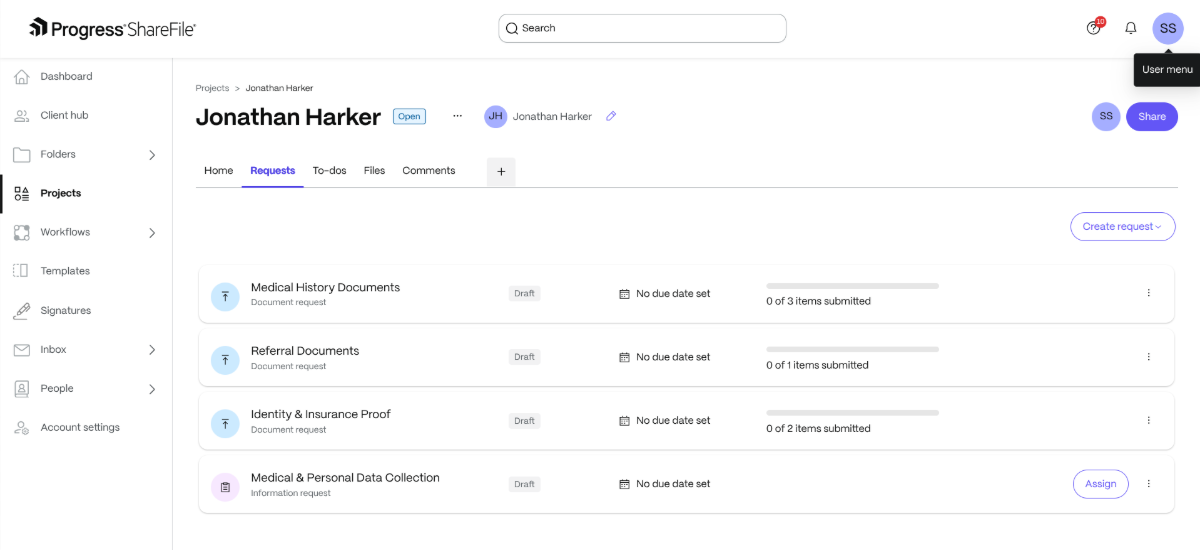
The Patient Onboarding template auto-loads the following request types:
- Medical History Documents – This one is broken down into Previous Medical Reports, Lab Test Results and Prescription History.
- Referral Documents – This is where you’d store referral letters from another provider.
- Identity & Insurance Proof – You’ll save a scan of the patient’s government-issued ID and insurance card here.
If you drill down into the three requests above, you’ll find the folders where lab test results, prescriptions, and IDs can be uploaded. You can also assign these requests to your patients (or your administrators to follow up on).
The fourth request type in this template is called Medical & Personal Data Collection. It’s an editable and fillable form that looks like this:
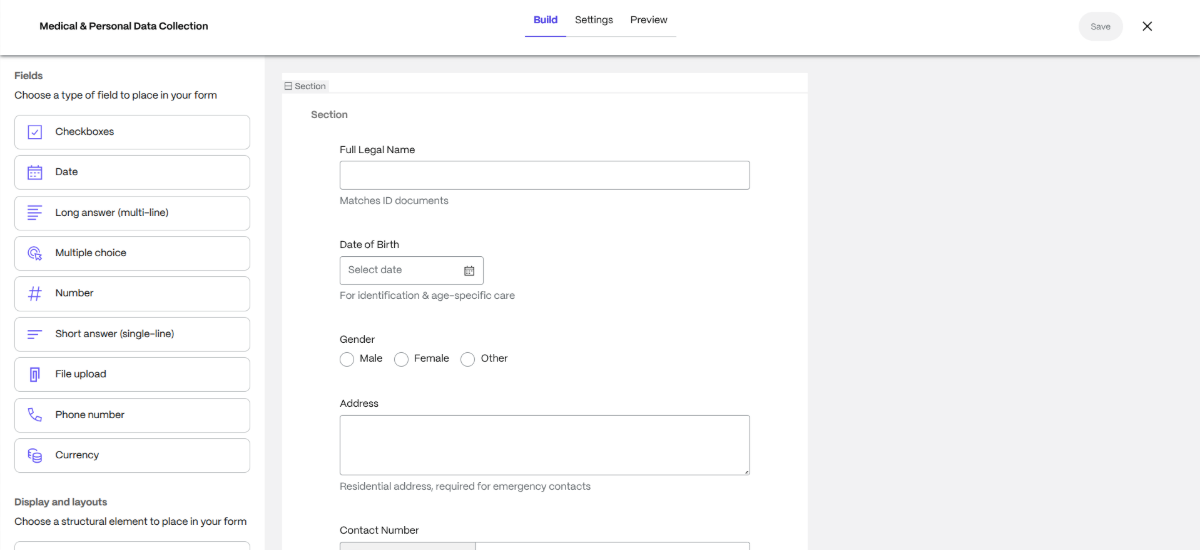
The form asks for basic information about the patient along with things like who their primary care physician is, what existing medical conditions they have and their preferred language to communicate in.
The form is fully editable, so you can delete, modify and add anything you like. From the left-side panel, you can add all kinds of fields to this form, so you can easily build it out to match your printed paperwork.
4. Mobile-friendly Forms
Just as your physical healthcare facility is designed for accessibility, so too should your user portal and patient forms be.
For starters, your organization can use ShareFile software on the web or as a desktop application on:
- Mac
- Windows
- Android
- iOS
- Outlook
- Outlook Online
- Google Workspace
In addition, ShareFile for Clients (i.e., your patients) can be installed as an Android or iOS app. From here, your patients can:
- Sign documents
- Upload files
- Fill out forms
- Scan documents
When your office emails or texts links to new patients, they’re mobile responsive. This gives them the option of filling your paperwork out from their computers as well as their mobile devices. The mobile app makes it even easier.
5. E-signature Collection
In addition to collecting new patient info, your workflow involves getting signatures for things like:
- Consent to care
- HIPAA acknowledgement
- Financial responsibility agreement
- Consent to share patient info
You could wait until the new patient is in the office to collect signatures. However, getting these signatures ahead of time can greatly speed things up and help keep your appointments running on time.
What’s more, signature collection in the ShareFile platform helps centralize patient info and related signatures in one place.
One of the problems with some EFSS solutions is that they allow you to upload forms, but not to make them editable. This then means that patients have to find software that will let them digitally write over them. Or they have to print them, scan and reupload to your server.
Either way, this process gets to be quite tedious and time-consuming. ShareFile software simplifies the entire process.
The first thing you’ll do is upload any files you need signed:
![In ShareFile, healthcare administrators can upload documents to send and get signed. They’re also able to add multiple recipients.] Configuration options and available features may vary based on account settings and customer requirements. (/sharefile-request-signature.png “ShareFile file upload”)
Just drag-and-drop or upload your files to the first screen. Then add the recipient below.
Next, prepare the document so that your patient can fill it out online with ease:
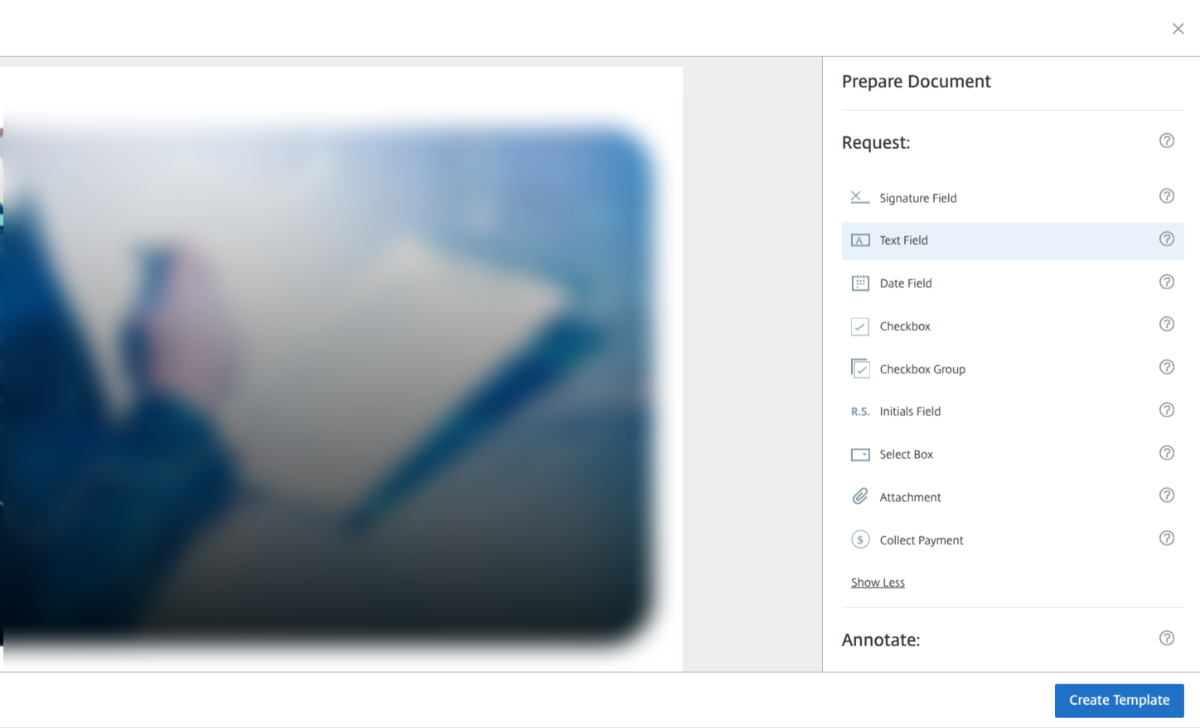
From this panel, you can add the following fields to your file:
- Signature
- Text input
- Date
- Checkbox
- Checkbox Group
- Initials
- Select box
- Attachment
- Payment info
You can also annotate the document with your own signature, text and checkmarks, if needed.
Once you’re done digitizing the form, the last screen gives you a chance to review the fields and send it to the new patient.
By the way, you won’t need to go through this process each time. You can use the Templates area in the ShareFile platform to upload the document once, add the editable fields and then save it for reuse.
6. Time-saving Automations
Speaking of automations, this is where digitizing patient paperwork really stands apart from the manual workflows that healthcare administrators are used to.
With ShareFile software, there are many different ways to automate and streamline your onboarding process. Templates are just one of them.
Here are some other things you can do:
- Connect your electronic health records and other patient management software to ShareFile.
- Set up new client folders with all relevant tasks and requests using a one-click template.
- Send automated reminders about open to-dos.
- Create trigger-based workflows to automate repetitive document-based processes.
Here’s a snapshot of the automated workflow generator tool inside the ShareFile platform:
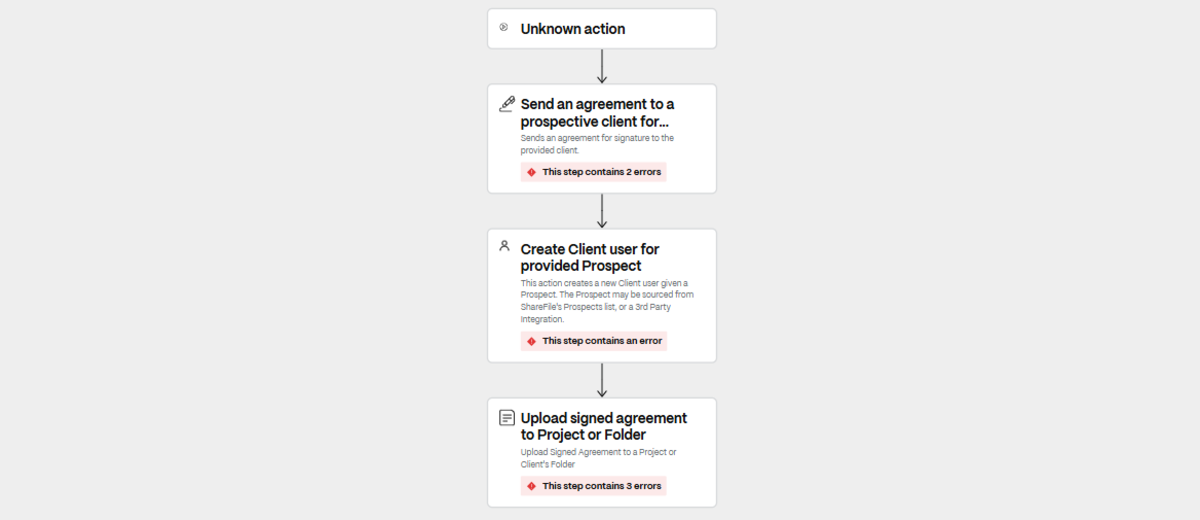
This tool enables you to define what the triggering action is (if you don’t want to manually trigger it) and then to define the follow-up steps. These automated workflows can help keep things running smoothly and on time for your healthcare office.
Wrapping Up
Modern, digitized document workflows can greatly improve how healthcare offices are run. For example, these are some of the benefits:
- Faster onboarding process for the patient (i.e., typing vs. handwriting)
- Faster onboarding process for administrators (i.e., automating and digitally sending vs. in-office oversight)
- More accurate data collection
- Better-informed patients (as they’re not rushing to complete consent forms)
- Fewer bottlenecks lead to improved appointment pacing
- Reduced no-shows
- Accelerated payment collection
More convenient and modernized healthcare onboarding leads to greater patient satisfaction and, in return, higher practice revenue.
To achieve these outcomes, you need an EFSS that does more than just speed up the process. You need one that is designed with patient privacy considerations in mind and enhances the user experience for all involved.
Learn more about how the ShareFile platform helps streamline healthcare patient onboarding here.

Suzanne Scacca
A former project manager and web design agency manager, Suzanne Scacca now writes about the changing landscape of design, development and software.